

Do you want to copy an entire page data? Perhaps to create a staging site to test changes before they go live, replicate a cool page design, or even get a translation of your page? The best solution is to get a duplicate of your page. While these are some of the most popular reasons, there are a couple of methods you can use to have it done.
In this article, we’ll take you through a step-by-step guide to duplicating your WordPress page. We’ll be exploring the two primary methods; the built-in WordPress functionality, and using a third-party plugin.
How to Duplicate a WordPress Page/Post Without Plugin
Although it’s not being talked about enough, this is the easiest way to duplicate a WordPress page. Just follow these few steps.
- Go to Posts or Pages in your WordPress dashboard.
- Click on the title of the page you want to duplicate.
- Click on the three dots menu in the top right corner of the page editor.
- Select Copy page.
- A new page will be created with the same content, settings, and metadata as the original page. You can then edit the new page as needed.
How to Duplicate a WordPress Page/Post with Plugins
There are several plugins developed to do this, and why people prefer this method to using ordinary WordPress functionality is the ability to duplicate multiple pages at once, and also make duplicates with their media files, and even custom fields. For this article, we will be giving step-by-step guides on how to use some of the most popular plugins; Duplicate Page and Post, Duplicate Post, and WP Cloner.
How to Duplicate a WordPress Page/Post with Duplicate Page and Post Plugin
The duplicate Page and Post plugin are one of the widely used plugins for page duplication. Aside from it containing multiple features to customize your result, it’s also very easy to use.
- Install and activate the Duplicate Page and Post plugin.
- Go to Settings > Duplicate Page and Post.
- In the General Settings section, configure the following options:
- Default post status:This is the status that the duplicated page/post will be created with. The default option is Draft.
- Copy media files:This option determines whether the media files associated with the original page/post will be copied to the duplicated page/post. The default option is Yes.
- Copy custom fields:This option determines whether the custom fields associated with the original page/post will be copied to the duplicated page/post. The default option is Yes.
- Click on the Save Changes button.
- Go to Pages or Posts in your WordPress dashboard.
- Click on the title of the page/post you want to duplicate.
- You will see a new Duplicate button below the page/post title.
- Click on the Duplicate button.
- A new page/post will be created with the same content, settings, and metadata as the original page/post. The new page/post will be created in the Draft status by default. You can then edit the new page/post as needed.
You can also duplicate multiple pages/posts at once either by selecting the pages or marking an entire category.
How to Duplicate a WordPress Page or Post with Duplicate Post Plugin
Using the Duplicate Post Plugin isn’t a lot different from the Duplicate Page and Post Plugin. One can even argue that the only difference is the developing company. Here are the steps to use Duplicate Post plugin.
- Install and Activate the Plugin:
- Log in to your WordPress dashboard.
- Navigate to “Plugins” > “Add New.”
- Search for “Duplicate Post” in the search bar.
- Install and activate the “Duplicate Post” plugin.
- Configure Plugin Settings (Optional):
- After activating the plugin, go to “Settings” > “Duplicate Post” to configure its settings.
- Here, you can choose which elements of the original post/page you want to copy, such as title, content, excerpt, custom fields, etc. Adjust the settings according to your needs.
- Duplicating a Post/Page:
- Navigate to “Posts” or “Pages” in your WordPress dashboard, depending on what you want to duplicate.
- Hover over the post/page you want to duplicate. You will now see two new options: “Clone” and “New Draft.”
- Using the “Clone” Option:
- Click on the “Clone” option to immediately duplicate the post/page. The duplicate will be created as a draft with the same content as the original.
- Using the “New Draft” Option:
- Click on the “New Draft” option to create a new draft of the post/page. This will open the post/page editor with the same content as the original, allowing you to make any modifications before saving.
- Edit the Duplicated Content (If Needed):
- Once the duplication process is complete, you can edit the duplicated post/page as needed. You might want to change the title, content, featured image, or any other elements.
- Publish or Update the Duplicated Post/Page:
- After making any necessary changes, click the “Publish” button if you want to publish the duplicated post/page immediately. If you’re not ready to publish, you can save it as a draft.
- Review and Finalize:
- Before publishing, take a moment to review the duplicated post/page to ensure everything looks the way you want it to.
How to Duplicate a WordPress Page/Post with WP Cloner Plugin
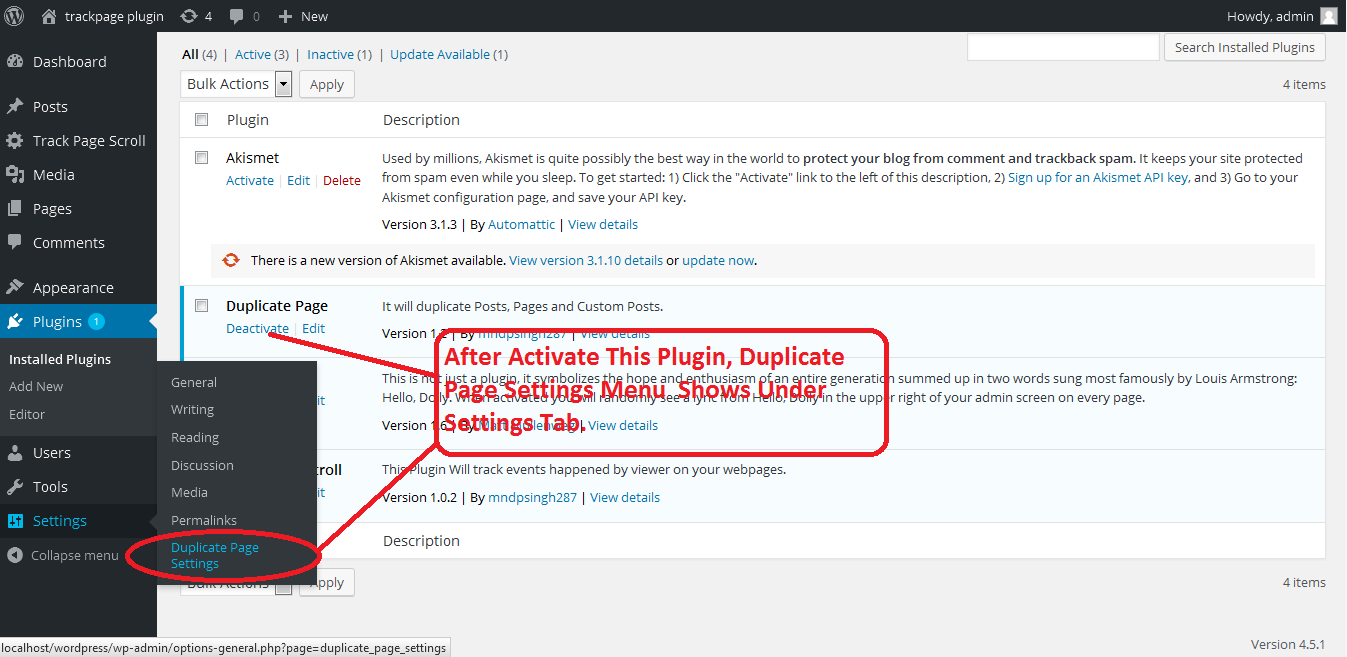
This plugin follows pretty much the same steps as the previous two – as well as other standard page cloning plugins. More so, there’s a quick guide after installation that shows you how to use the plugin.
While the free versions are great for quick duplication of your pages and posts, these plugins also have a premium version which you can choose to get to access advanced features. If you’re not looking to pay for these plugins, you can also try duplication using your PHP file.
How to Duplicate a WordPress Page/Post with functions.php File
We always recommend you’ve backed up your site before altering its php files, even if you’re familiar with working with wPHP php or your site’s cPanel. If anything goes wrong, just restore the backup and evaluate your options. Here’s a step-by-step guide to duplicating a WordPress page or pot using the ‘functions.php’ file.
- Access Theme Files:
- Log in to your WordPress dashboard.
- Navigate to “Appearance” > “Theme Editor.”
- On the right side, you’ll see a list of theme files. Click on “Theme Functions” or “functions.php.”
- Add Custom Code:
- At the bottom of the functions.php file, add the following custom code:
function duplicate_post_or_page($post_id) {
$post = get_post($post_id);
if ($post != null) {
$post_data = array(
‘post_title’ => $post->post_title . ‘ (Copy)’,
‘post_content’ => $post->post_content,
‘post_excerpt’ => $post->post_excerpt,
‘post_status’ => ‘draft’,
‘post_type’ => $post->post_type
);
$new_post_id = wp_insert_post($post_data);
if ($new_post_id) {
return $new_post_id;
} else {
return false;
}
}
return false;
}
// Hook this function to a specific action
add_action(‘wp_loaded’, ‘duplicate_post_or_page’);
- Save Changes:
- After adding the code, click the “Update File” button to save your changes to the functions.php file.
- Duplicating a Post/Page:
- Now, when you view a post or page in the WordPress dashboard, you’ll see a “Duplicate” button.
- Click “Duplicate”:
- Click the “Duplicate” button next to the post or page you want to duplicate.
- Edit the Duplicated Content (If Needed):
- Once the duplication process is complete, you can edit the duplicated post/page as needed. Modify the title, content, images, or any other elements.
- Publish or Update the Duplicated Post/Page:
- After making any necessary changes, click the “Publish” button if you want to publish the duplicated post/page immediately. If you’re not ready to publish, you can save it as a draft.
- Review and Finalize:
- Before publishing, review the duplicated post/page to ensure it looks the way you want it to. Make any final adjustments if needed.
- Clean Up (Optional):
- If you no longer need the original post/page, you can delete it.
Please remember that editing the ‘functions.php’ file directly could lead to errors if not done correctly. If you’re not comfortable with coding, consider using a plugin or seeking assistance from a developer.


