
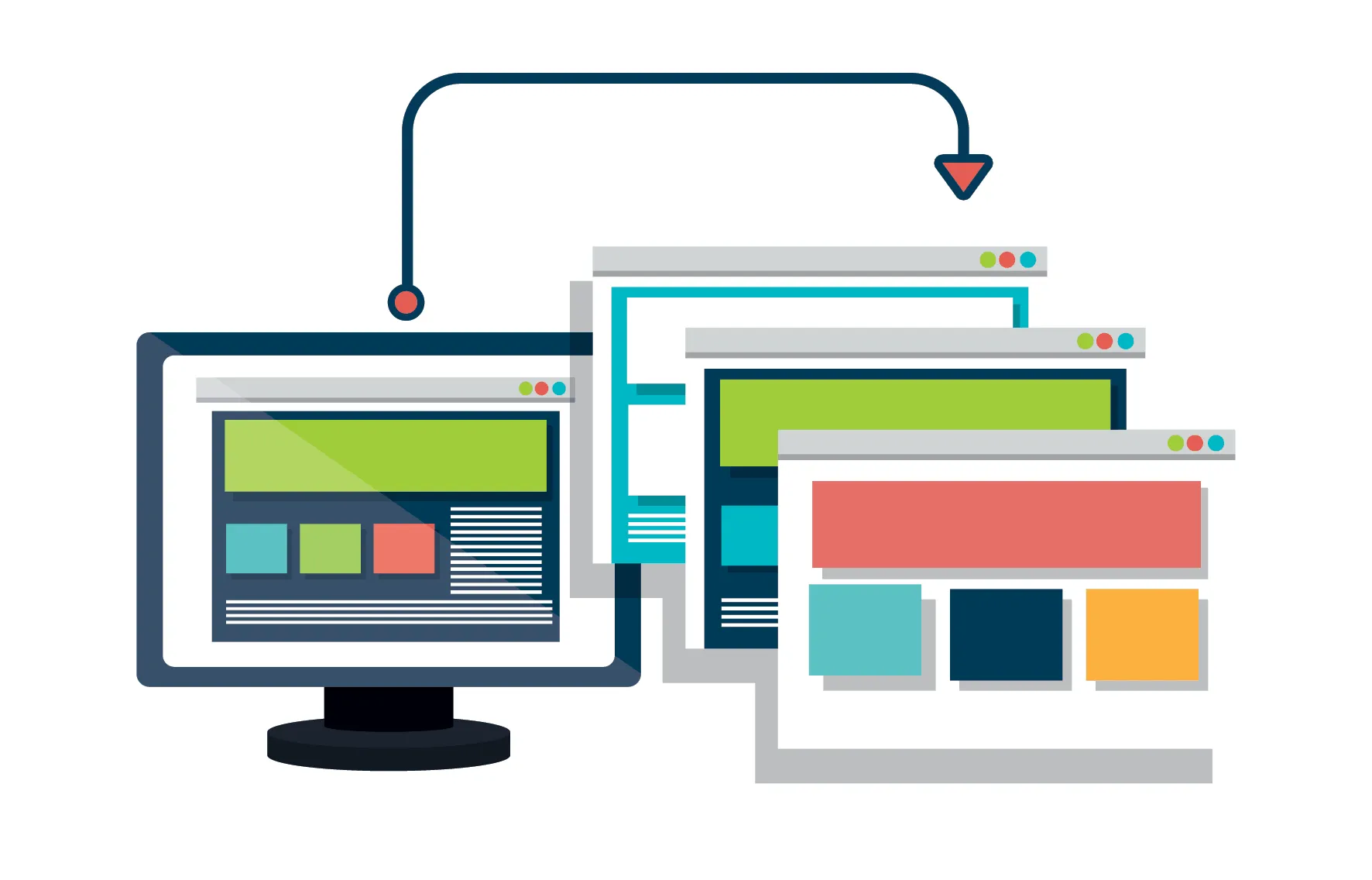
Are you looking to create a backup for your site? A safe environment to test changes? To get a new site? Or even mirror the existing one to target other geographic locations for profit maximization? Then closing your website is one of the most efficient ways to go about it – there’s no better way to do this than through the cPanel.
While cloning websites is considered illegal if it’s not yours as it’s a copyright/trademark infringement, it’s necessary in some cases if you’re a developer who needs a clone of your website to achieve some objectives. In this article, we’ll go through a step-by-step guide on how own close a website using cPanel.
Cloning a website in cPanel: A Step-By-Step Guide
First, it’s important we understand that it is a manual process so it’s recommended you have a backup of your site before tampering with its cPanel. Moving forward, we’ll assume you’ve gotten a backup and can proceed to clone.
Step #1 Copy the Website
First, you want to log into your cPanel account and click on the “File Manager” icon. Next, In the left-hand navigation pane, expand the directory that contains the website you want to clone. Right-click on the website directory and select “Copy”. In the “Copy to” field, enter the name of the new directory that you want to create for the cloned website. Click on the “Copy” button
Step #2 Extract the Website’s Database
After you’re done copying the site, you’ll want to clone the database as well. To do this, simply click on the “MySQL Databases” icon in cPanel, click on the name of the database of the original website, and click the “Export” button. In the “Export Options” dialog box, select the “Structure and data” option and click on the “Export” button. The database for the original website will be exported to a file with the .sql extension.
Step #3 Import the Database to your New (Clone) Site
To do this, click on the “phpMyAdmin” icon in cPanel. In the left-hand navigation pane, expand the database for the new website. Click on the “Import” tab. Click on the “Choose File” button and select the .sql file that you exported from the original website. Click on the “Go” button. The database for the original website will be imported into the new directory. Your cloned website should now be ready to use.
Now you can go about configuring the new database, adding a new user, giving privileges, and everything else.
Cloning a Website with WordPress Toolkit: A Step-By-Step Guide
If you’re looking for a relatively easier process, cloning with WordPress Toolkit in cPanel is arguably your best bet. Just following the process.
- Log in to your cPanel account.
- Click on the “WP Toolkit” icon.
- From the list of WordPress installations, locate the one you want to clone.
- Click the button to expand the entry.
- Click “Clone.”
- In the dialog that opens, select the following options:
- Target: Choose where you want to clone the website. You can create a new subdomain, use an existing domain or subdomain, or clone the website to a local directory on your computer.
- Database: Choose whether to create a new database for the cloned website or use the existing database of the original website.
- Data: Choose which data you want to clone. You can clone all data, including the website files, database, and settings, or you can select specific files or folders to clone.
- Click “Start.”
WP Toolkit will then begin cloning the website. This process may take a few minutes to complete. Once the cloning process is complete, you will be able to access the cloned website at the URL you specified. Most site owners prefer this method as it automatically creates a new database and user for your cloned site, without having to do the traditional database settings. The only blemish here is that it only works for sites hosted on WordPress, non-WordPress users will need the previous tutorial to have their websites cloned.
Why Would Anyone Want to Clone a website?
There are several potential reasons that could warrant the cloning of a website, for the purpose of this article, we will be focusing on the legal reasons.
● For Educational Purposes
Website cloning is one of the things taught to individuals learning web development. This helps them create a safe space to study the structure of their code, and functionality. It also gives hands-on experience on troubleshooting procedures that are expected to be known by every web developer.
● Efficient Methods for Monetization Sites
Landing pages, affiliate marketing websites, and niche websites often use the same format. As such, most developers just clone something existing and make a few edits to suit the current purpose. It’s a lot faster than building the same thing from scratch when you know that they’ll contain pretty much the same number of pages/contents.
● Localization
For websites intended for different language audiences, cloning allows you to maintain the core structure and content while adapting specific elements for different regions.
● Testing and Development
The obvious reason – cloning a website provides a safe environment for testing updates, changes, or new features before implementing them on the live site. Developers can experiment with code changes, plugin installations, and theme updates without affecting the original site.


